IT Ops Fast Track: From Application to Server
This guide walks you through documenting an application and its supporting infrastructure -- from creating the app entry to linking it to the server that hosts it. It's designed to get you productive fast, covering the essential steps without drowning you in options.
Prefer a one-page summary?
All the key steps on a single A4 page -- print it, pin it, share it with your team.
For full details, see the Applications and Assets reference docs.
The Big Picture
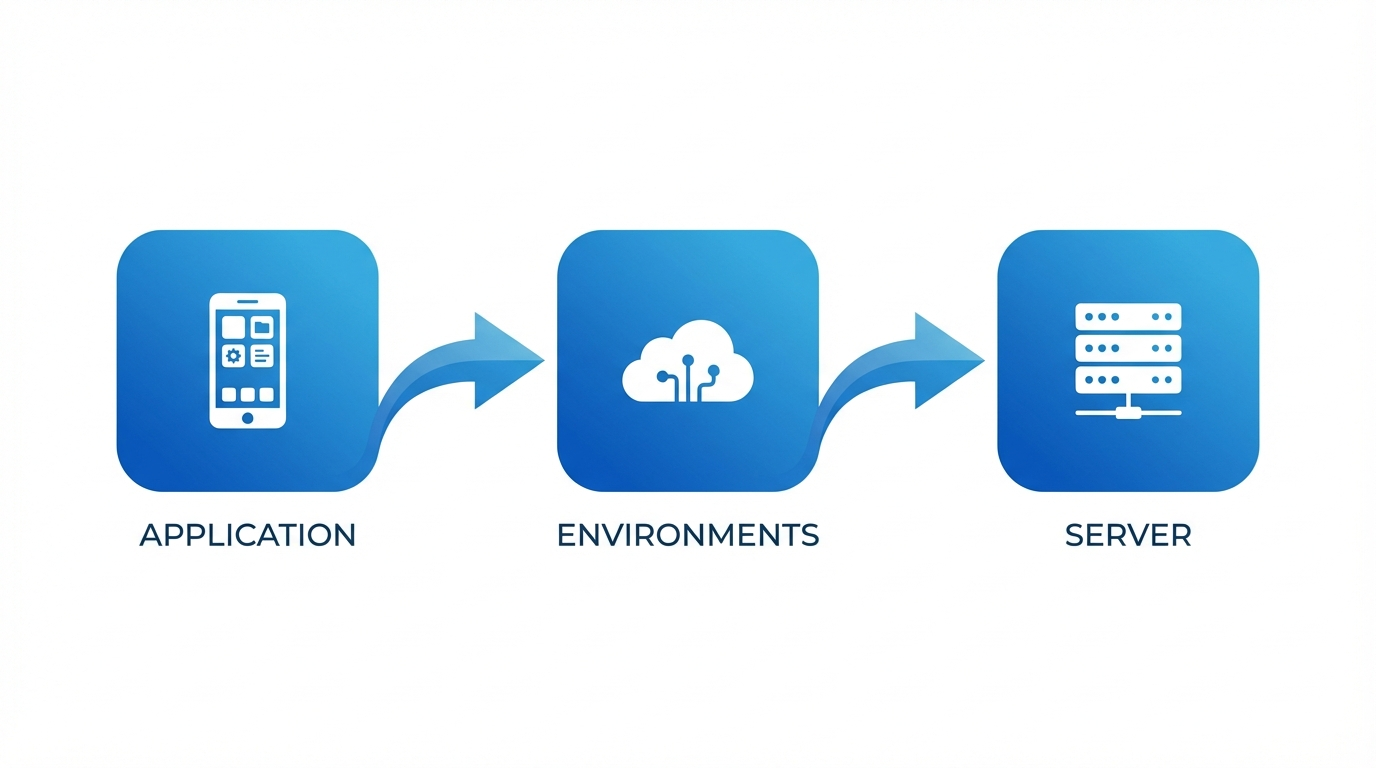
Everything in KANAP's IT Landscape module connects to paint a complete picture of your landscape:
| Object | What it represents |
|---|---|
| Application | A business app or IT service you need to document |
| Environment | Where it runs -- Prod, QA, Dev, etc. (called "Deployments" in KANAP) |
| Server (Asset) | The infrastructure that hosts it -- VMs, physical servers, containers |
The chain is simple: Application → Environment → Server. By the end of this guide, you'll have this chain fully documented.
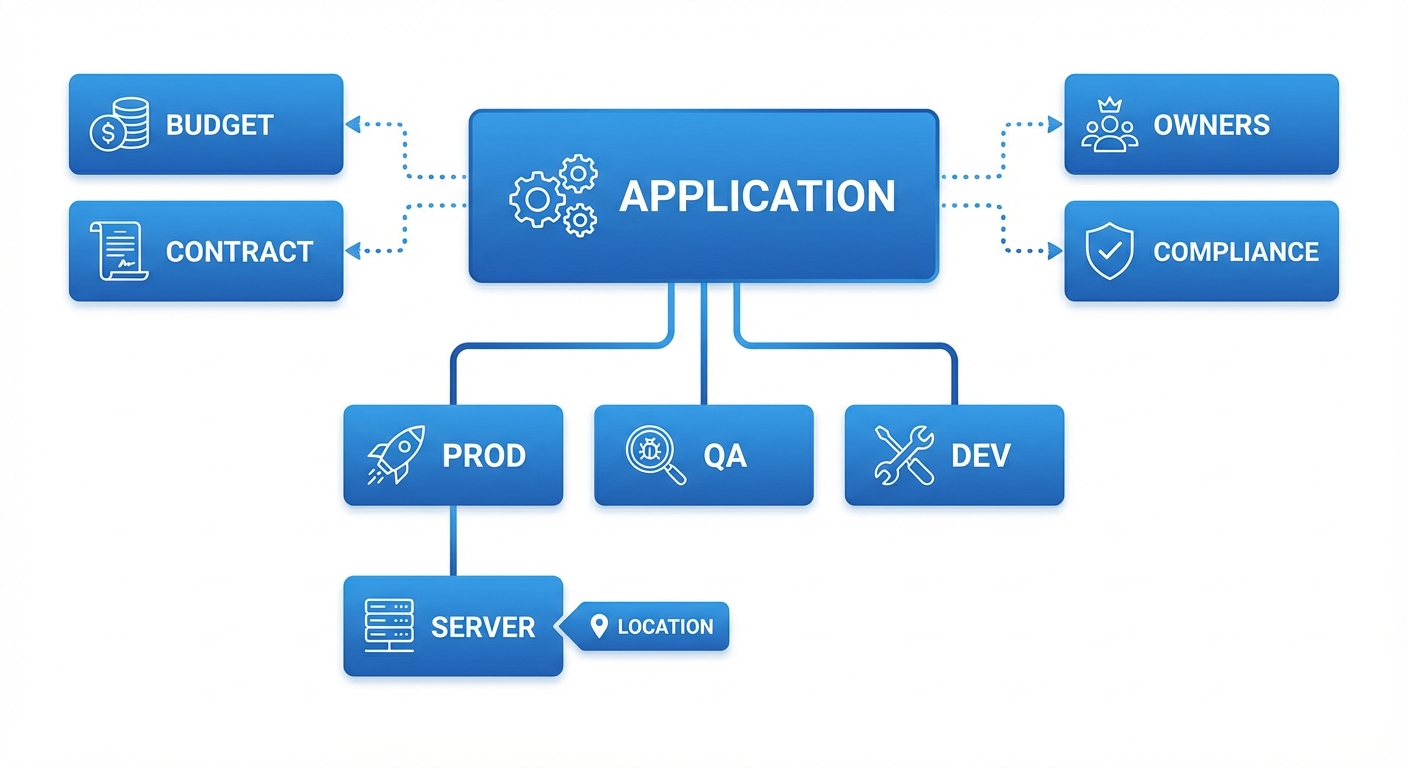
Why this matters
When someone asks "where does this app run?", "who owns it?", or "is it compliant?" -- you'll have the answer in seconds instead of digging through spreadsheets.
Step 1: Create Your Application
Go to IT Landscape → Applications and click New App / Service.
Fill in the essentials:
| Field | What to enter | Example |
|---|---|---|
| Name | A clear, recognizable name | Salesforce CRM |
| Category | The primary purpose | Line-of-business |
| Supplier | The supplier (from your master data) | Salesforce Inc |
| Business criticality | Business importance | Business critical |
| Lifecycle | Current status | Active |
Click Create. Your application is now in the registry, and the full workspace opens with six tabs for detailed documentation: Overview, Deployments, Interfaces, Operations, Compliance, and Relations.
Start with what you know
Description, publisher, version, licensing -- all useful, but optional at this stage. You can enrich later. The goal is to get the app into the system.
Step 2: Add an Environment (Deployment)
Every application runs somewhere. The Deployments tab documents your environments.
Open your application and go to the Deployments tab. Click Add deployment and pick the environment (PROD, PRE-PROD, QA, TEST, DEV, or SANDBOX).
For each deployment, you can capture:
| Field | What it does | Example |
|---|---|---|
| Environment | The environment type | PROD |
| Lifecycle | Deployment-specific status | Active |
| Base URL | The access URL | https://mycompany.salesforce.com |
| SSO enabled | Is Single Sign-On active? | Yes |
| MFA supported | Is Multi-Factor Authentication supported? | Yes |
| Notes | Any additional context | Primary EU instance |
Each deployment appears as a card, with its servers listed underneath (see Step 8). Use the pencil icon to edit a deployment and the delete icon to remove it.
Deployment changes save as soon as you confirm the dialog.
Step 3: Assign Owners
Owners live in the Properties panel on the right of the application workspace.
Business owners
The business stakeholders accountable for the application. Add one or more people.
IT owners
The IT team members responsible for technical operations and support. Same mechanism: add the people.
Audience (Optional)
Under Audience, pick the Company and Departments that use this application. KANAP calculates the number of users from your master data, or you can switch the calculation to manual and type the number yourself.
Why owners matter
Ownership makes it easy to reach the right people when it matters -- planned maintenance, service disruptions, upgrade decisions, license renewals. It also drives the My apps and My team's apps scope filters on the main list. Without owners, the app is only visible in the "All apps" view -- which means nobody feels responsible for it, and nobody gets notified.
Step 4: Set Access Methods
Go to the Operations tab. Under Access methods, select how users reach this application:
- Web -- browser-based access
- Locally installed application -- desktop client
- Mobile application -- phone/tablet app
- VDI / Remote Desktop -- virtual desktop
- Terminal / CLI -- command-line interface
- Proprietary HMI -- industrial interface
- Kiosk -- dedicated terminal
Access methods are configurable in IT Landscape Settings, so your list may include additional options.
Also set:
| Field | What it means |
|---|---|
| External facing | Is this app accessible from the internet? |
| Data integration / ETL | Does this app participate in data pipelines? |
The same tab holds the Support contacts (use Add contact and give each one a role) and free-text Support notes.
Step 5: Link to Other Objects (Relations)
Go to the Relations tab to connect your application to the rest of your IT management data.
| Link type | What you're connecting | Why |
|---|---|---|
| OPEX items | Recurring costs (licenses, SaaS fees) | See the full cost picture |
| CAPEX items | Capital expenditure projects | Track investment |
| Contracts | Vendor agreements | Know when renewals are due |
| Projects | Portfolio projects | Connect to your project portfolio |
| Relevant websites | Documentation, wikis, runbooks | Quick access to external resources |
| Attachments | Files (drag-and-drop or file picker) | Keep specs and docs alongside the app |
The tab also lets you link Tasks, and suites list their Components there.
You can do this later
Relations are powerful but not blocking. Create them when you have the data -- the app is fully functional without them.
Step 6: Add Compliance Information
Go to the Compliance tab. This is increasingly important for audits and regulatory requirements.
| Field | What to enter | Example |
|---|---|---|
| Business criticality / Cyber criticality | How critical the app is | Business critical |
| Data confidentiality | Sensitivity level | Confidential |
| Contains personal data | Stores personal data? | Yes |
| Data residency | Countries where data is stored | France, Germany |
| Last recovery test | Last disaster recovery test date | 2025-11-15 |
The tab also holds the Recovery wave, the recovery objectives (RTO and RPO) and a Justification. When you are done, mark the classification as reviewed.
Classification levels are configurable
The default data classes (Public, Internal, Confidential, Restricted) and the criticality levels can be customized in IT Landscape → Settings to match your organization's classification policy.
Step 7: Create Your Server (Asset)
Go to IT Landscape → Assets and click Add asset.
Overview tab
Fill in the core fields:
| Field | What to enter | Example |
|---|---|---|
| Name | Hostname or identifier | PROD-WEB-01 |
| Asset type | The server type (dropdown) | Virtual Machine |
| Location | Where it's hosted (required) | Paris Datacenter |
| Environment | Which environment it serves | Prod |
| Description | Any additional context | -- |
The Properties panel on the right holds the rest: Sub-location, Lifecycle, Go live, and End of life. Once a Location is selected, several read-only fields are automatically derived:
- Hosting type (on-premises, cloud, colocation, etc.)
- Cloud provider / Operating company (e.g., AWS, Azure, or the company running the facility)
- Country
- City
Location is the key
The Location drives many attributes of your asset automatically. Locations are managed in IT Landscape → Locations -- set them up once and every asset assigned to them inherits hosting type, provider, country, and city. You don't need to fill these in manually.
Click Create to unlock the full workspace. For physical asset types, additional Hardware and Support tabs become available to track serial numbers, manufacturer details, and vendor support contracts.
Technical tab
Go to the Technical tab to add:
| Section | Fields | Details |
|---|---|---|
| Cluster management | Cluster switch | Turn it on if this asset is a cluster, then add its member servers |
| Identity | Hostname, Domain, FQDN, Aliases, Operating system | FQDN is auto-computed from Hostname + Domain |
| IP addresses | Type, IP address, Subnet | Network zone and VLAN are derived from Subnet |
Multiple IP addresses
A server can have several IP addresses -- add as many as needed (e.g., management interface, production VLAN, backup network). Each entry can have its own type and subnet, and the Network zone and VLAN are derived automatically.
Step 8: Link the Server to Your Application
This is the final connection -- tying your server to the application environment it supports.
There are two ways to create this assignment:
From the Application side
- Open your application
- Go to the Deployments tab
- On the PROD deployment card, click Add server
- Select your asset (
PROD-WEB-01) - Set the Role (Web, Database, Application, etc.), and optionally the Since date and Notes
From the Asset side
- Open your asset
- On the Overview tab, find the Assignments section
- Click Add assignment
- Fill in the assignment fields:
| Field | What to enter | Example |
|---|---|---|
| Application | The application to link | Salesforce CRM |
| Environment | Which deployment | PROD |
| Role | Server role for this app | Web |
| Since date | When the assignment started | 2025-01-15 |
| Notes | Any context | -- |
The chain is complete
You now have the full path documented:
Salesforce CRM → PROD deployment → PROD-WEB-01
Anyone can trace from "what app?" to "what server?" to "where is it?" in seconds.
How It All Connects
Every piece of data you enter feeds into something bigger:
Application Landscape View
Your Applications list becomes a live registry showing every application with its environments, criticality, hosting type, and ownership -- filterable by any attribute.
Infrastructure Mapping
Assets linked to application deployments let you answer questions like:
- "Which servers support this business-critical app?"
- "What applications will be affected if this server goes down?"
- "How many apps are hosted in this datacenter?"
Compliance Reporting
Data classification, PII flags, and data residency flow into compliance views. When the auditor asks "where is customer data stored?", you have a documented, traceable answer.
Knowledge
Both Applications and Assets have a Knowledge section on their Overview tab where you can link runbooks, architecture decisions, operational procedures, and internal documentation. Having these references attached to the right records means your team can find what they need during incidents without hunting through wikis.
Connection Map
Once assets are documented, you can create Connections (Server to Server or Multi-server) between them to visualize network flows and dependencies. The Connection Map renders these as an interactive graph with role-based vertical tiers for an architecture-style view.
Interfaces & Interface Map
Take it one step further: document Interfaces between applications to capture data flows, integration points, and business context. Each interface has five tabs for thorough documentation: Overview, Flow, Environments, Data mapping, and Relations.
Then use the Interface Map to visualize the full application flow. In the default Business view, you see clean source-to-target relationships. Switch to the Technical view to reveal middleware platforms as diamond-shaped nodes, showing the actual data path. Depth filtering counts only primary application nodes -- middleware is transparent, so selecting an app with depth 2 shows you two real hops regardless of how many middleware platforms sit in between.
Quick Reference
| I want to... | Go to... |
|---|---|
| Create an application | IT Landscape → Applications → New App / Service |
| Add environments | Open app → Deployments tab → Add deployment |
| Assign owners | Open app → Properties panel |
| Set access methods | Open app → Operations tab |
| Link budgets/contracts | Open app → Relations tab |
| Attach knowledge docs | Open app → Overview tab → Knowledge |
| Add compliance info | Open app → Compliance tab |
| Create a server | IT Landscape → Assets → Add asset |
| Link server to app (from app) | Open app → Deployments tab → Add server |
| Link server to app (from asset) | Open asset → Overview tab → Assignments → Add assignment |
| View server connections | Open asset → Overview tab → Connections |
| View connection map | IT Landscape → Connection Map |
| View interface map | IT Landscape → Interface Map |
| Configure dropdowns | IT Landscape → Settings |
You're ready
You now know how to document the full chain from application to server. Start with your most critical apps, add their production environments, link the servers -- and you'll have a living, queryable IT landscape in no time. For detailed documentation on every feature, explore the Applications and Assets reference sections.